I’ve been obsessed with one question lately: what if your morning routine didn’t start with checking five different apps?
Most of us wake up and immediately run the same mental circuit — email, calendar, Slack, maybe a task manager if we’re disciplined. We’re not starting our day. We’re reconstructing it from scattered fragments.
That changed for me when I stopped thinking about AI as a chat tool and started thinking about it as an operating layer.
The Problem With Dashboards (Until Now)
I’ve built dashboards before. Notion databases. Google Sheets with formulas that made me feel like an engineer. Airtable views that looked impressive and went stale in a week.
The problem was never the structure — it was the maintenance. Dashboards are living things. When they don’t update themselves, they die. And then you’re back to the five-app circuit.
What I actually needed wasn’t a better layout. I needed a dashboard that wanted to stay current.
Enter the Self-Refreshing Layer
The shift happened when I started using AI not just to generate content, but to generate interfaces — interactive, connected, living views of my actual data.
Here’s the basic architecture I landed on:
Step 1: Connect Your Data Sources
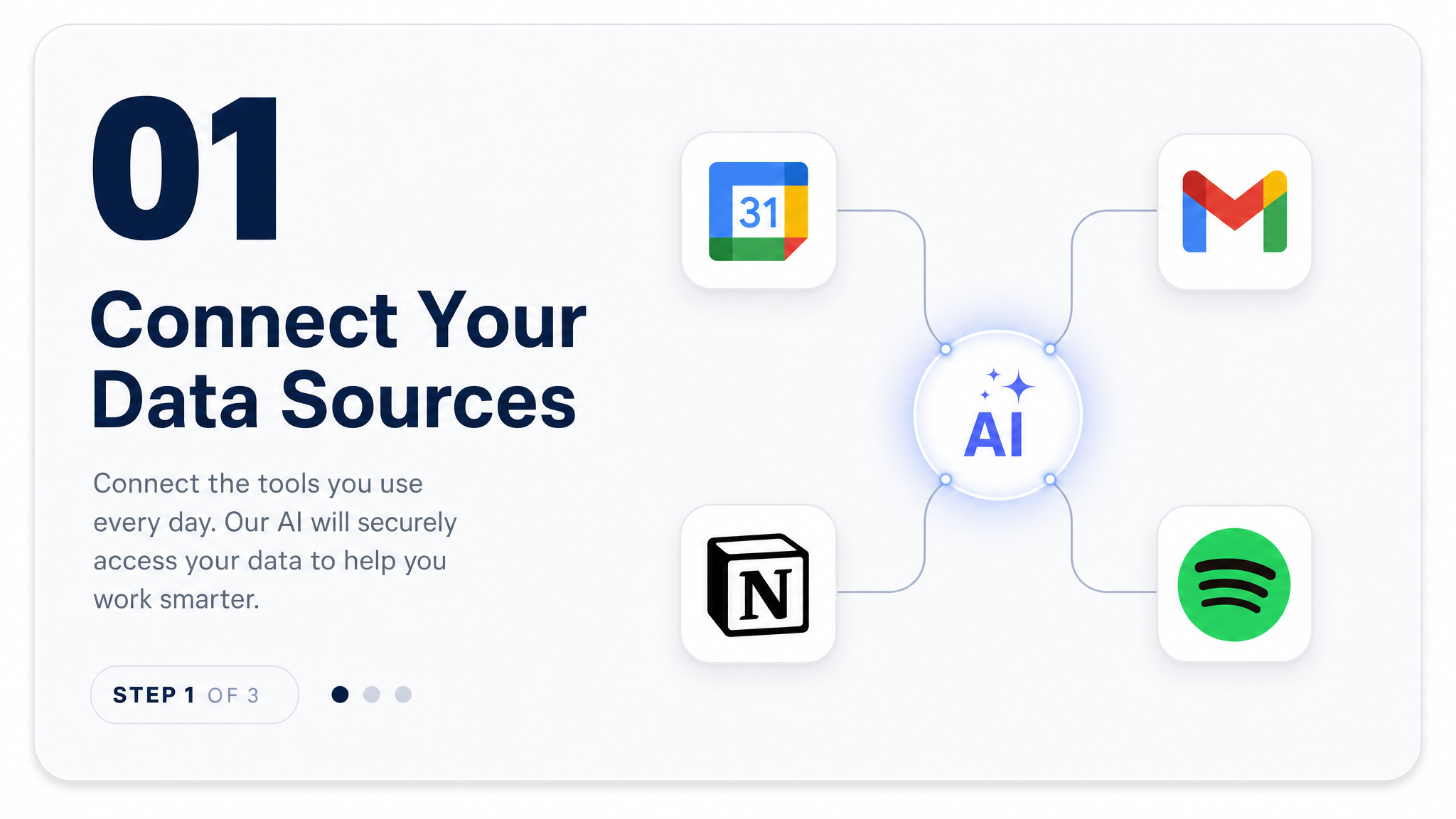
Connect your calendar, email, project management tools — the things that tell you how your day is actually going. You don’t need to pull everything. Just the signals that matter.
Step 2: Design for Your Brain, Not a Template
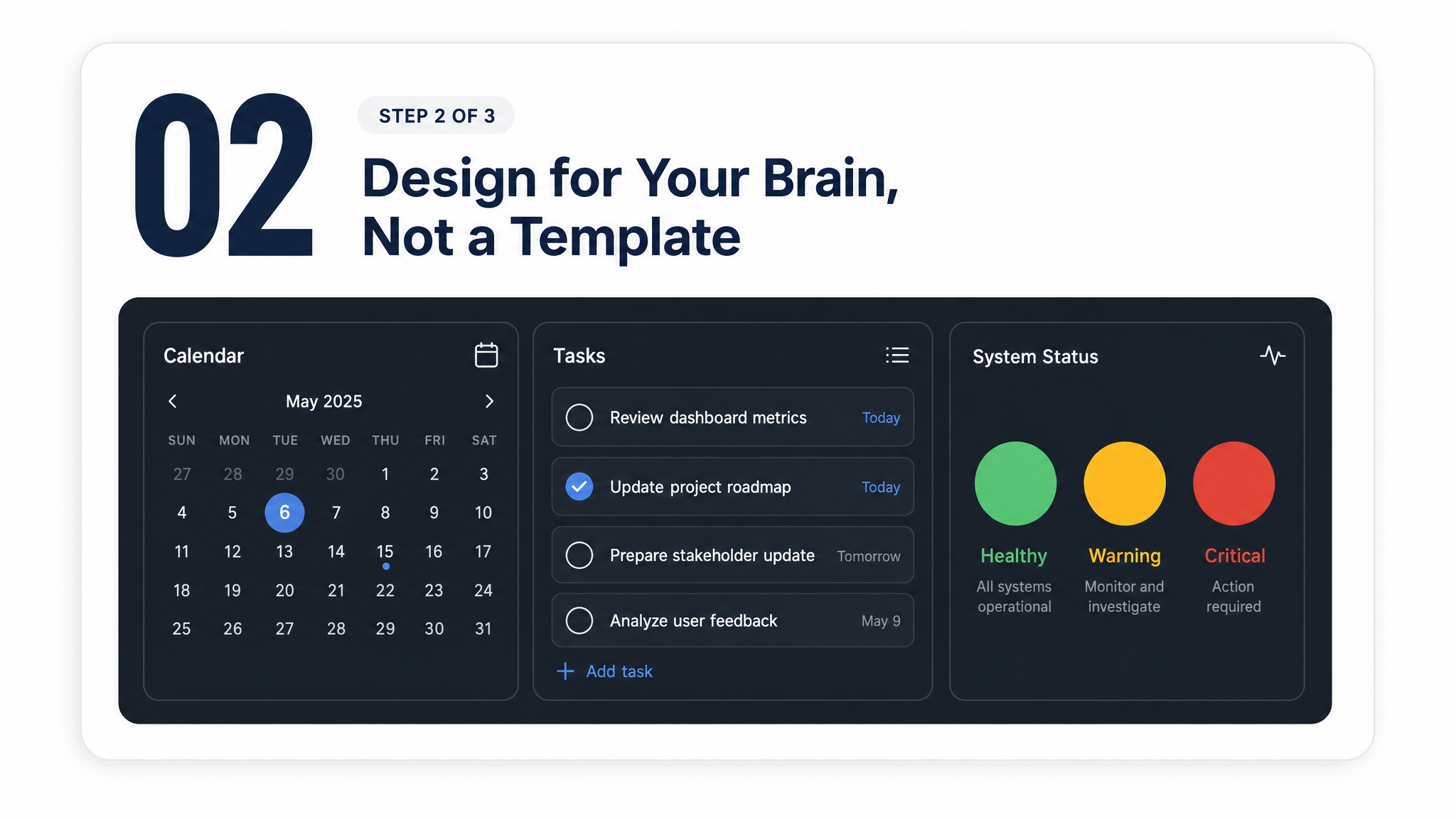
The best dashboard is the one you’ll actually open. That means the aesthetic matters. I went minimal and dark because I look at it first thing in the morning. What works for a 25-year-old SaaS founder is not what works for me. Tell the AI exactly how you want to feel when you open it.
Step 3: Build In the Refresh Trigger
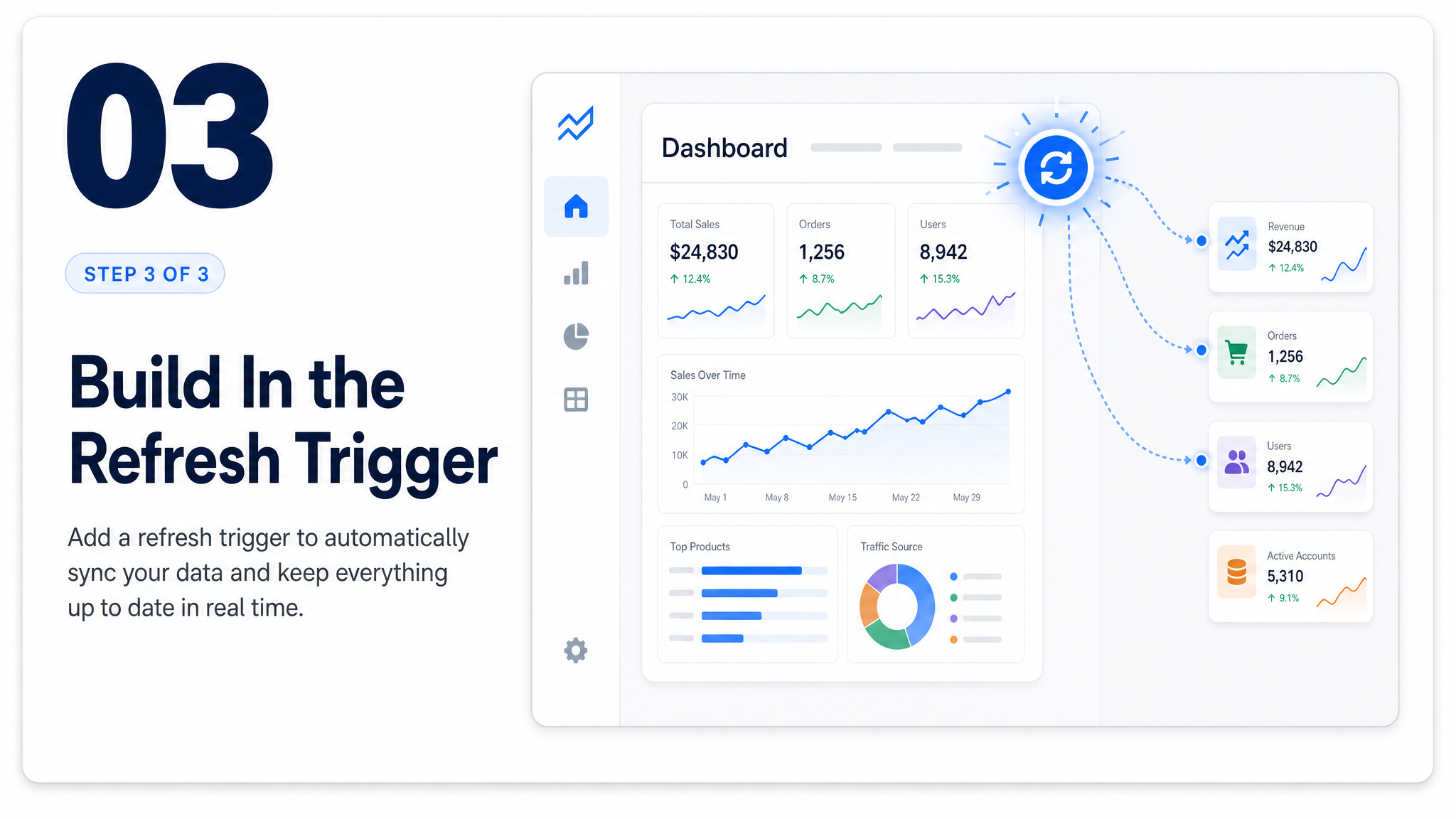
The single biggest unlock: making the dashboard aware that data changes. When I open it, it’s not showing me yesterday. It’s showing me now.
What This Actually Looks Like in Practice
My current command center pulls in:
- My top 3 calendar blocks for the day (not the full calendar — just the decisions I need to make)
- Open threads from my project management tools flagged as “needs response”
- A rolling 48-hour task list sorted by impact, not urgency
- A simple status indicator: green (clear runway), yellow (one fire to manage), red (all hands)
That last one sounds simple. It’s the most valuable thing on the screen. I know within five seconds of opening it whether I’m in execution mode or triage mode.
The Design Insight No One Talks About
Most people build dashboards to see more. The real win is building one that helps you decide faster.
Every element on mine answers one of three questions:
- What’s the most important thing right now?
- What’s about to become urgent if I ignore it?
- What can I safely defer?
That’s it. Three questions. If a data source doesn’t help me answer one of those, it doesn’t make the cut.
You Don’t Need to Be a Developer
Connect only data sources and permissions authorized for the intended use. Show the last successful refresh and any failed data source; opening a dashboard does not guarantee its contents are current.
Now I describe what I want in plain language, give it access to my tools, and iterate in real time. The “design” step is just me saying this feels too busy or can you make this look less like a spreadsheet.
That’s a different relationship with technology than most of us grew up with.
Start Here
If you want to build something like this, start with the smallest possible version:
- One data source (your calendar is the easiest starting point)
- One decision it needs to support (what’s my first meeting and do I need to prep?)
- One aesthetic preference (tell it how you want to feel when you look at it)
Build that first. Get it working in a way that makes you actually want to open it. Then add a layer.
The best productivity system is the one you use. Everything else is just a pretty interface you’ll abandon by Thursday.
Correction — September 10, 2026: removed an unsupported six-month comparison and clarified source authorization and refresh visibility. Claimed implemented connections remain subject to verification.